

Why take this course
Your feed is full of AI demos: upload a photo, type "model this building," and watch a mass appear. Impressive for thirty seconds, useless on a real project. The geometry is unreliable, nothing is parametric, and you'd redraw it anyway. Prompting AI for shapes is not where artificial intelligence pays off in architecture.
This course goes beyond the gimmick. Instead of copying a viral demo, you'll learn the primitives behind every AI agent (Large Language Models, tools, JSON tool calls, the Model Context Protocol and MCP servers) and how they connect to give AI real hands inside Rhino 8 and Grasshopper. Once you understand the building blocks, you stop following tutorials and start designing your own AI workflows.
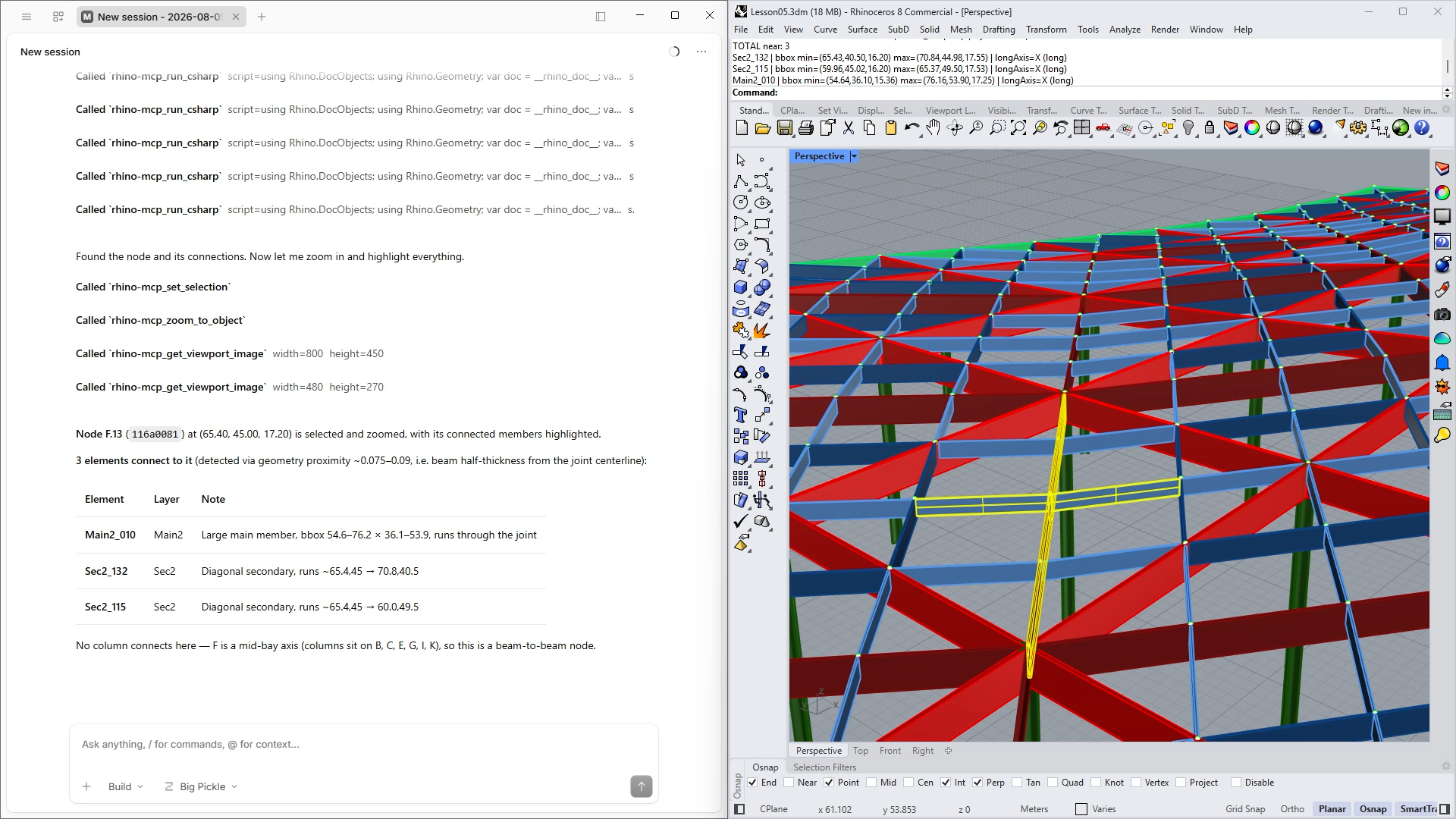
Then we put those primitives to work on scenarios that matter on real AEC projects: locating elements during a coordination call, tracing the knock-on effect of a delayed column, running a live value engineering study, and pushing model data to Google Sheets and a client email. All in plain English, without writing a single line of code.
The typical AI demo
- "Model this building from the image"
- Unreliable geometry you'll redraw anyway
- One trick, with no idea why it works
- Great in a reel, absent from real projects
This course
- Understand how LLMs, tools and MCP actually connect
- Build your own tools and use McNeel's official Rhino-MCP
- Apply AI to data, cost, coordination and reporting
- A mental model you can reuse on any project
The AI primitives you'll master
Every AI agent, whether it drives Rhino, a spreadsheet or your inbox, is built from the same six pieces. Arie breaks each one down with a simple factory analogy, so you understand not just what to click, but why it works.
The Client
OpenCode, the workspace where you type and the agent replies. Free, open-source and model-agnostic: switch between AI models from a single menu.
The LLM
The brain. It reasons through your request and decides which tool to call, but it has no hands to touch your model.
Tools
The menu of actions. Each tool has a name, a purpose and typed parameters, so the LLM knows exactly what it can do and which inputs it needs.
The Tool Call
The LLM turns plain English into a structured JSON message, like {"target": "B.03", "color": "red"}, that software can execute without ambiguity.
MCP
The universal socket. The Model Context Protocol is the "USB-C for AI": one open standard that plugs any AI client into any application.
MCP Servers
The hands. Swiftlet and Rhino-MCP receive the tool call, execute it in Rhino and report back, closing the loop.
What you will learn and why it matters
Go from zero to a working AI-to-Rhino bridge, then learn when to build your own tools and when to rely on an out-of-the-box MCP server.
1. Set up your AI-to-Rhino bridge
Install Swiftlet and Rhino-MCP from Rhino 8's Package Manager, set
up the OpenCode desktop app, connect an AI model and write the
opencode.json configuration that launches your MCP
servers and establishes the first local handshake with Rhino.
2. Build your own AI tools in Grasshopper
Use Swiftlet's Define Tool, Define Tool Parameter, Deconstruct Tool Call and MCP Tool Response components to design custom tools visually. Send your first message from the chat straight onto the Grasshopper canvas, then let the AI drive parametric geometry, and see exactly how a tool call travels from end to end.
3. Leverage McNeel's official Rhino-MCP
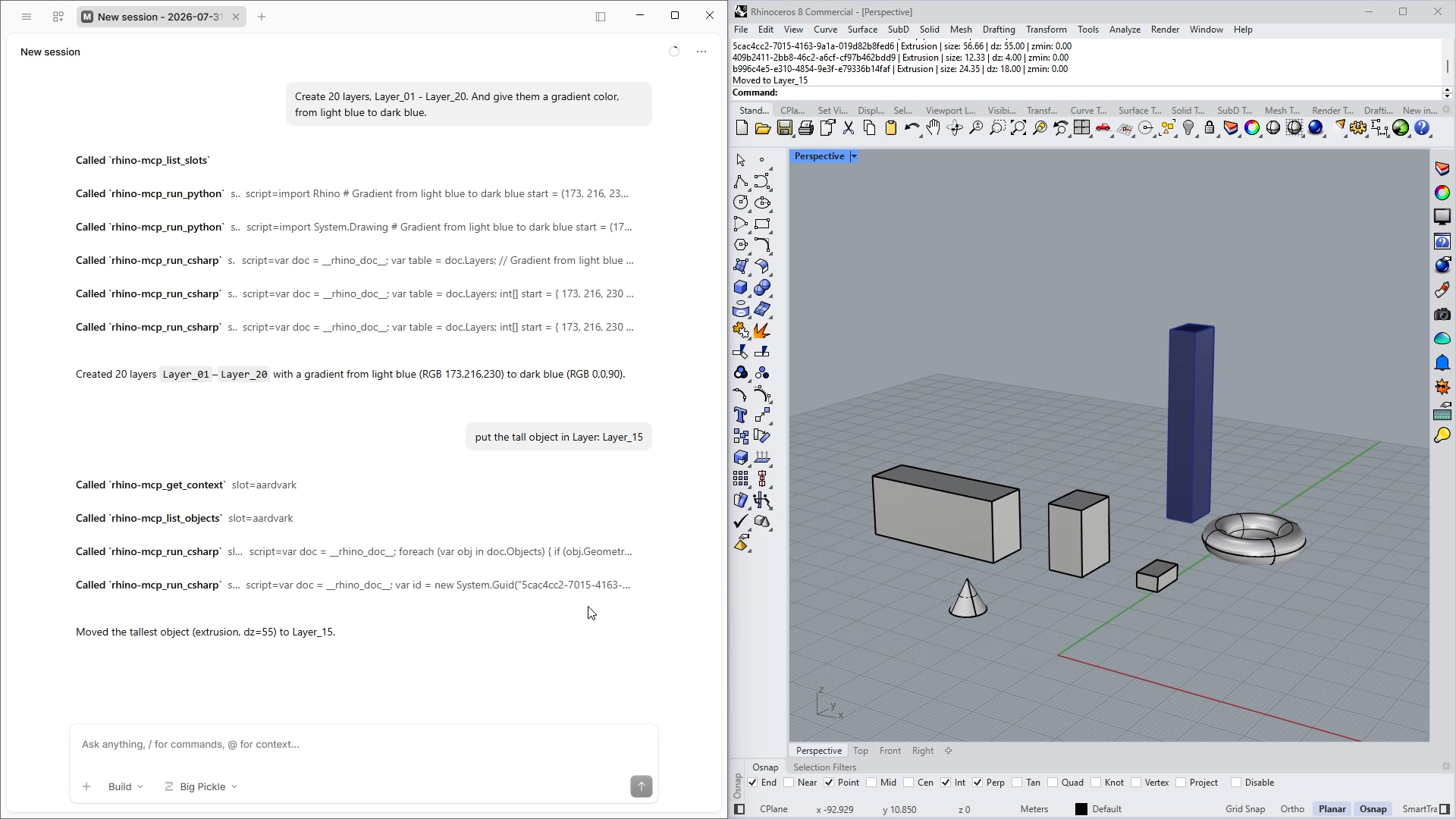
Plug into the entire Rhino document with a ready-made server that reads and writes layers, selects objects, edits attributes, runs scripts and captures your viewport. Learn the trade-off between custom Swiftlet tools and the pre-built Rhino-MCP, so you pick the right one for every job.
4. Orchestrate multi-app AI workflows
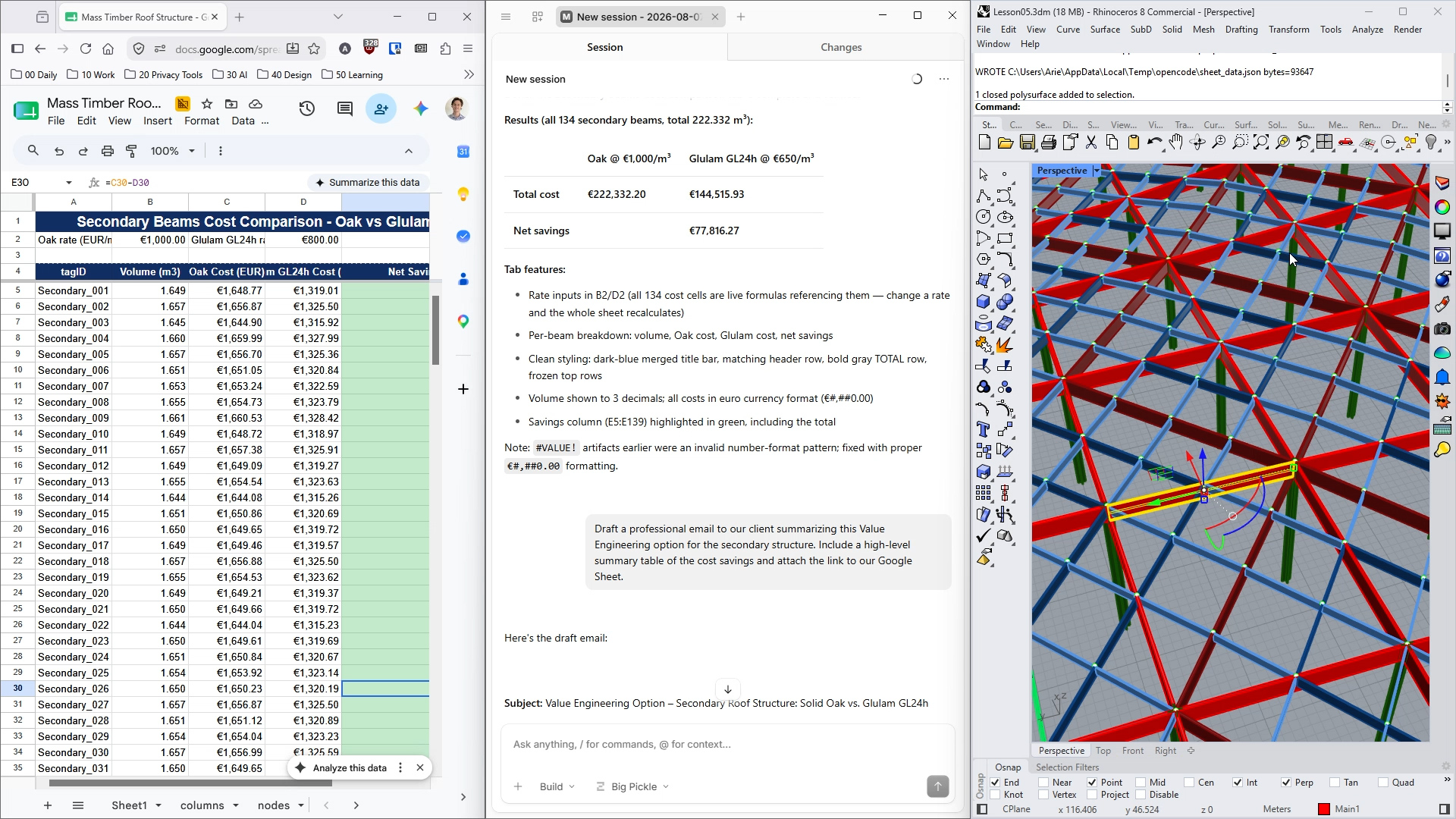
Connect a second MCP server, Google Sheets, and let OpenCode chain tools across applications: extract a master takeoff from Rhino, run a cost comparison, format an executive spreadsheet and draft the client email, all in one conversation.
Use cases you'll explore
The case study is a double-curved timber roof where every element carries metadata: tag, status, position and connected nodes. That metadata becomes the AI's eyes. These are some of the prompts you'll run, and each one is a starting point for workflows of your own.
Locate & coordinate
"Find Node B.03, select it and zoom in."
The viewport jumps to the exact element. No more getting lost in the model during a site call.
Delay cascade
"If Column E.15 is delayed, which beams are blocked from being assembled?"
The agent traces structural dependencies and highlights every affected beam in red.
Live value engineering
"Compare our secondary beams in Oak at €1,200/m³ versus GL24h at €950/m³."
A cost delta in seconds, during the client meeting, not next week.
Project dashboard
"Summarize the model: elements by type, total volume, % fabricated."
An instant status report that anyone on the team can request.
Update model data
"Change the status of column G.15 to delayed."
Edit element attributes in plain English and keep the model as your single source of truth.
Model to client email
"Send every element to a Google Sheet, add a cost comparison tab and draft the client email."
The capstone: a complete multi-app workflow in a single conversation.
Know where AI shines
Going beyond the gimmick also means knowing the limits. You'll learn the sweet-spot rule: AI agents excel at summarizing, measuring, searching, highlighting, tagging, color-coding and reporting. Precise geometry creation and tweaking? That stays in Rhino, where you're faster and in control.
Before you start
You'll need Rhino 8 and a basic understanding of Rhino and Grasshopper. No coding experience required. New to the tools or want a refresher? Start with our Rhino 3D Certification and Grasshopper Certification courses.
1.- The AI-to-CAD Paradigm Shift & Core Theory
06min 47seg2.- Installing the Infrastructure
14min 34seg3.- Establishing First Contact - The "Hello World" Tool
14min 34seg4.- Creating geometry using Swiftlet
19min 23seg5.- Beyond the Gimmick with McNeel's Rhino-MCP
10min 05seg6.- Turning your CAD File into a Relational Database
16min 25seg7.- Connect with Google Sheets
16min 25seg8.- The Capstone - The Conversational Project Manager
11min 07seg9.- Course outro
01min 00seg